What it is
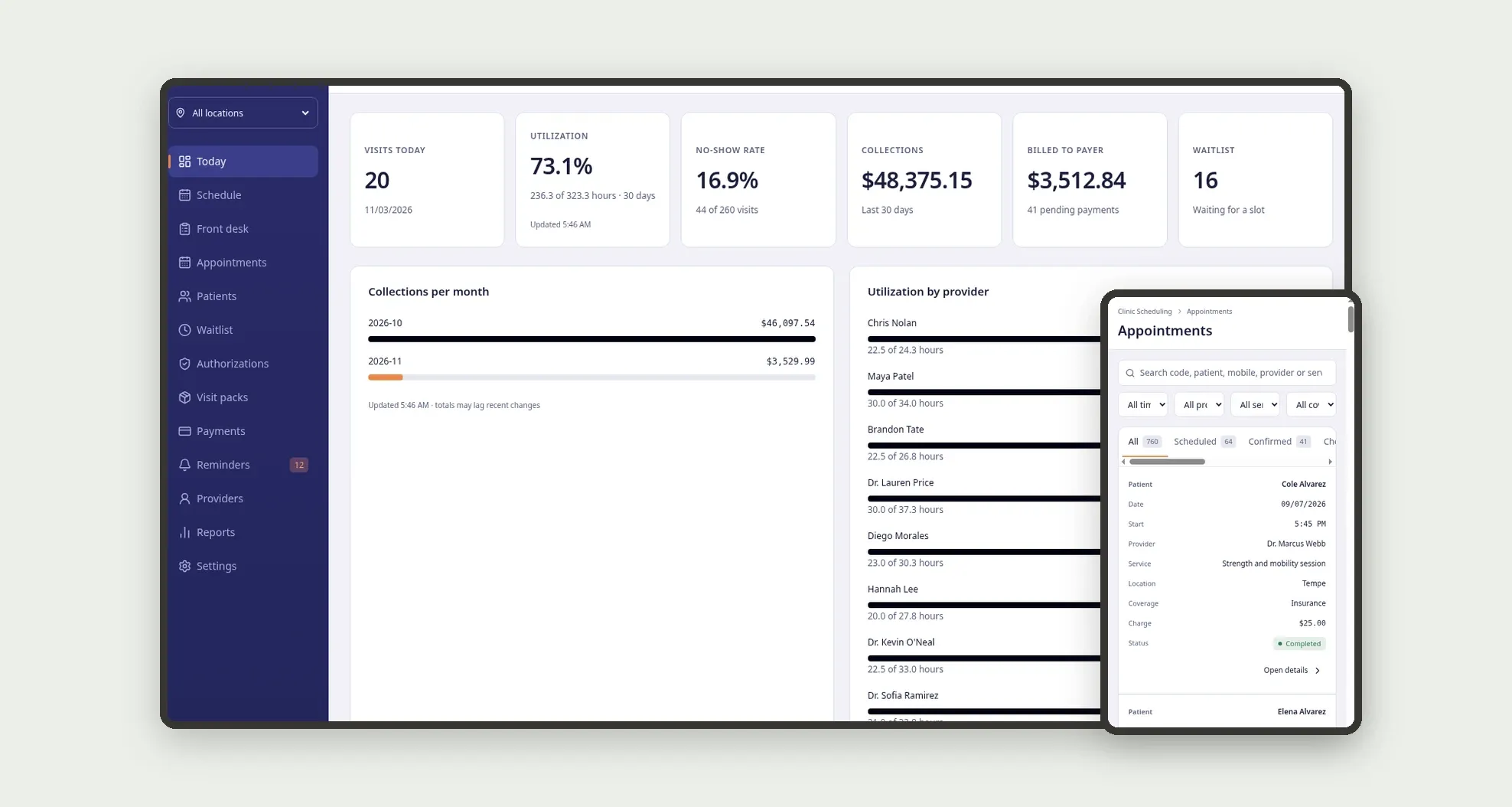
A template for physical therapy and rehab clinics with several providers and locations to book, confirm and check in patients, fill cancellations from the waitlist and track visits covered by insurance authorizations and visit packs. The Today screen shows at a glance visits today, utilization, no-show rate, collections, what is billed to payers and who is waiting for a slot.
Who it's for
- Physical therapy, occupational therapy and rehab clinics with several providers and locations
- Front desk teams that book, confirm and check in patients all day
- Providers who follow their own schedule by day or week
- Billing teams that track insurance authorizations, copays and pending payer payments
- Managers who follow utilization, no-shows and collections per provider and location
What you can do
- Book appointments by patient, service, location, provider and free 15-minute slot, with overlapping bookings for the same provider, full rooms and time off blocked
- See the day by provider or by room, or the week of one provider, with a now line and discipline colors
- Move patients through Scheduled, Confirmed, Checked in, In session and Completed, or mark No-show or Canceled with a reason
- Run the day on the Front desk board in four columns: Expected, Checked in, In session and Done
- Offer a canceled slot to the top 3 waitlist matches for the same service, location and preferred time
- Track insurance authorizations and visit packs, with visits used and left written on every completed visit and an amber alert at 2 or fewer visits left
- Record payments by card, ACH, cash, HSA card or insurance, and print or save a receipt as PDF
- List the reminders pending for the next 48 hours and mark them sent, one by one or all at once
App features
Today
The Today screen covers this part of the operation.
Schedule
The Schedule screen covers this part of the operation.
Front desk
Run the day on the Front desk board in four columns: Expected, Checked in, In session and Done.
Appointments
Book appointments by patient, service, location, provider and free 15-minute slot, with overlapping bookings for the same provider, full rooms and time off blocked.
Patients
Move patients through Scheduled, Confirmed, Checked in, In session and Completed, or mark No-show or Canceled with a reason.
Waitlist
Offer a canceled slot to the top 3 waitlist matches for the same service, location and preferred time.
Authorizations
Track insurance authorizations and visit packs, with visits used and left written on every completed visit and an amber alert at 2 or fewer visits left.
Visit packs
Track insurance authorizations and visit packs, with visits used and left written on every completed visit and an amber alert at 2 or fewer visits left.
Payments
Record payments by card, ACH, cash, HSA card or insurance, and print or save a receipt as PDF.
Reminders
List the reminders pending for the next 48 hours and mark them sent, one by one or all at once.
Providers
The Providers screen covers this part of the operation.
Reports
The Reports screen covers this part of the operation.
Settings
In Settings, fill in the clinic (reminder lead time, free cancel window and no-show fee), locations, services, rooms, team, availability, time off and payers.
How it works
In Settings, fill in the clinic (reminder lead time, free cancel window and no-show fee), locations, services, rooms, team, availability, time off and payers. Book an appointment: the service sets the duration and charge, and the app sets the coverage as Insurance, Visit pack or Self-pay from the patient's active authorization or pack.
Confirm, check in, start and complete the visit from the appointment drawer or the Front desk board. Completing opens Record payment prefilled and lowers the visits left on the authorization or pack; at 0 the authorization becomes Exhausted and the pack Used up.
Canceling asks for the reason, marks late cancels inside the free cancel window and offers the slot to the waitlist. Every change is saved in the Activity log and updates the patient's last and next visit, no-shows and the provider's booked hours.
How to set up this template
- 1Click Use App
Create your Jestor account and install Clinic Scheduling. It works on desktop and mobile.
- 2In Settings
In Settings, fill in the clinic (reminder lead time, free cancel window and no-show fee), locations, services, rooms, team, availability, time off and payers.
- 3Book an appointment: the service sets the duration and charge
Book an appointment: the service sets the duration and charge, and the app sets the coverage as Insurance, Visit pack or Self-pay from the patient's active authorization or pack.
- 4Confirm
Confirm, check in, start and complete the visit from the appointment drawer or the Front desk board.
Integrations and customization
The template works on desktop and mobile and can be adapted without code.
- Works on desktop and mobile; on mobile there is a bottom bar with Schedule, Front desk, Patients and Payments, the schedule becomes a day list and tables become cards
- Follows the Jestor light or dark mode automatically
- Admin, Front desk, Provider, Billing and Manager roles control what each person sees; users not linked to the team open the app as Admin
- Services, durations, prices, rooms, availability, payers, reminder and cancel windows and fields can be adjusted without code
And that's just the start: you can edit any part of this template and go much further just by asking Jestor's AI. Describe what you need, like a new field, automation, report or integration, and the AI builds or adjusts it for you, no code required.
Frequently asked questions
Does the app send reminders by text or email?
No. The Reminders screen lists the appointments in the next 48 hours that still need a reminder; marking one as sent saves the message in the patient's history, and you send it through your own channel.
How does the app decide the coverage of a visit?
It uses Insurance when the patient has a payer, the service is billable and an active authorization has visits left; Visit pack when an active pack of that service has visits left; otherwise Self-pay.
How is utilization calculated?
It divides the providers' booked hours by their available hours from availability minus time off, and shows the percentage with "x of y hours".
Can I see the schedule by room?
Yes. The day view switches between By provider and By room, and overlapping visits sit side by side.
Can I use the template with the sample data?
Yes. The data is fictitious and lets you explore the app before adding your own locations, providers and patients.